Watch. Pause. Step in.
See the work, then take the controls when you need.

Give your AI agent a private desktop.
Keep your desktop, your focus, and your flow.

When an agent works on your screen, its clicks, windows and typing get in the way of yours. You end up waiting for your own computer.
You should both be able to keep working.
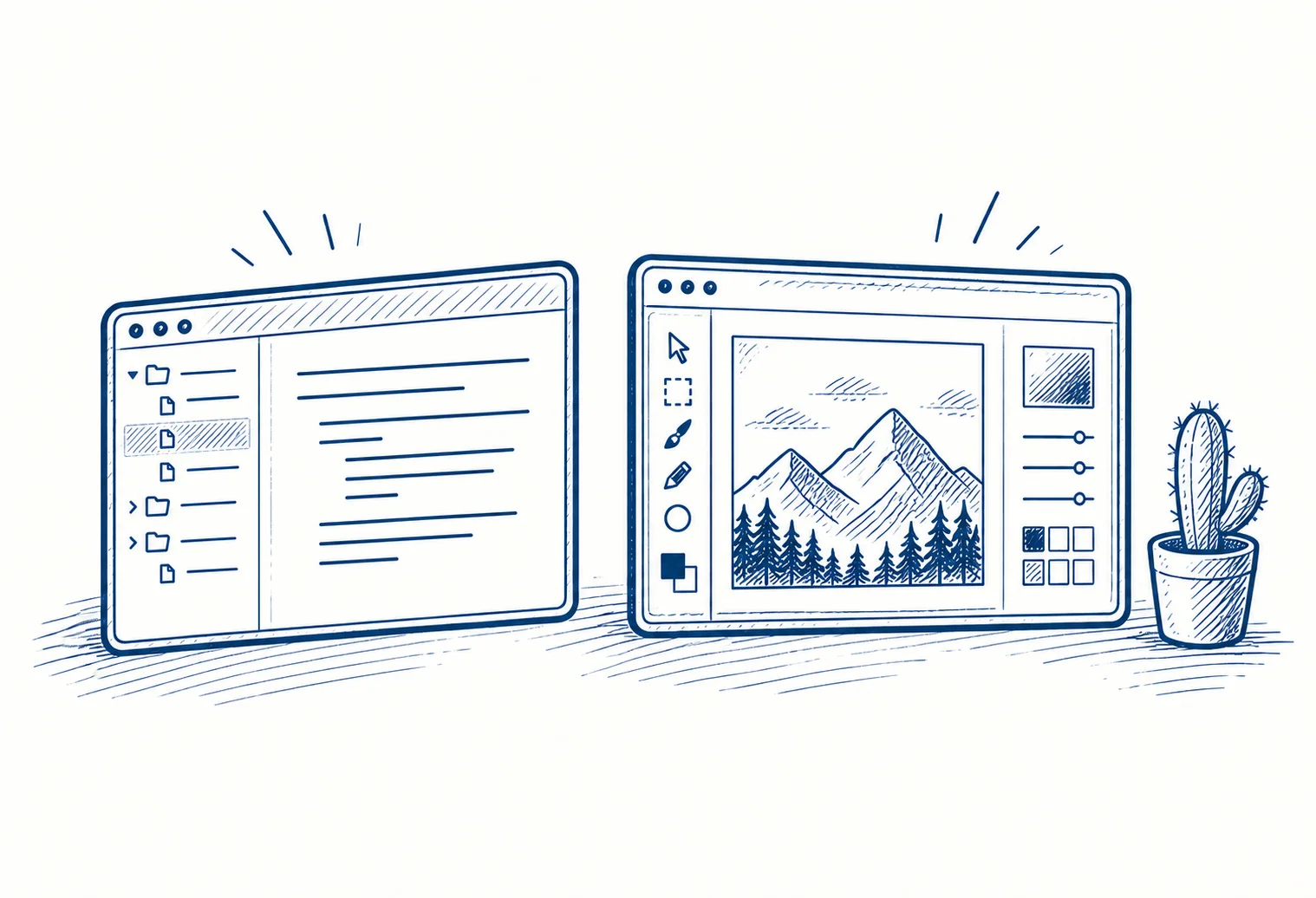
Native apps in a separate desktop.
See the work, then take the controls when you need.
Run native applications in the agent’s private desktop.
Connect a tool-capable agent host through MCP or the CLI.
 Orbit
OrbitYour agent gives instructions. Orbit manages the workspace.
Orbit brokerLocal session managerThree steps. The essentials are right here.
Use the commands below. The installer checks what your system needs.
Go to installationAfter installation, run this in your terminal. It prints configuration to paste into your agent host’s MCP settings; it does not connect the host for you.
sbar-orbit connector-configAsk your connected agent to inspect available applications, then work in a private desktop. Existing desktop applications remain on hold.
sbar-orbit applicationsThis command lists installed executable paths and available usage metadata without launching applications. Read the reported limits before choosing an application.
Orbit does not collect usage data. Your agent tools and applications still make their own network requests.
Developer reference (English)Install Orbit, connect your agent, and open its first workspace.
Full installation reference (English)git clone https://github.com/M7MMAD-OMAR/sbar-orbit
cd sbar-orbit
./install.shBun is required. Linux also needs user cgroup delegation. Private desktops currently require the Fedora setup.
Limited: private desktop tests on Fedora. Native desktop control on Windows and macOS is not implemented or measured.
The private desktop runtime uses a shared Linux resource budget. Installation on another system does not establish native desktop support. See support tiers.
Native owner handoff is on hold. Do not enable owner input or load the native plugin. Read the native hold.
Orbit is free and open source. If it makes your workday a little better, you can support the person building it.
 Always optional. Always appreciated.